On this page
Can I host a game server at home?
With most games, "a server for your friends" means a monthly subscription to a hosting company. With Openworld, the server is a program you run yourself: on the computer you play on, on an old PC in a cupboard, or on a machine you rent. No vendor in the middle, and the world's files stay on your disk.
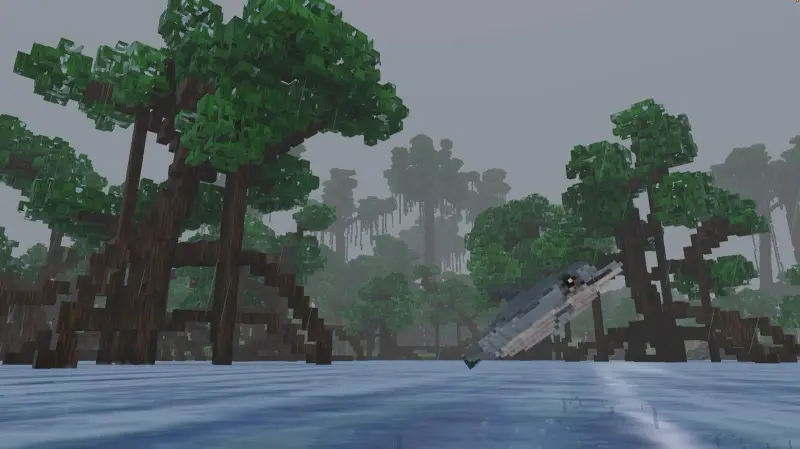
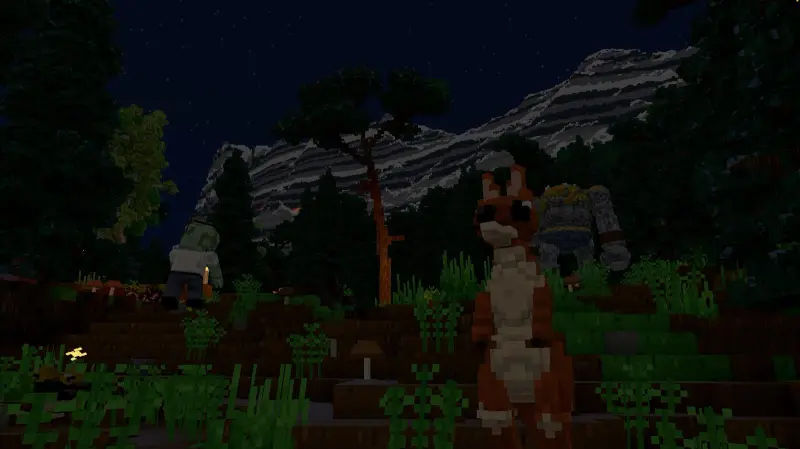
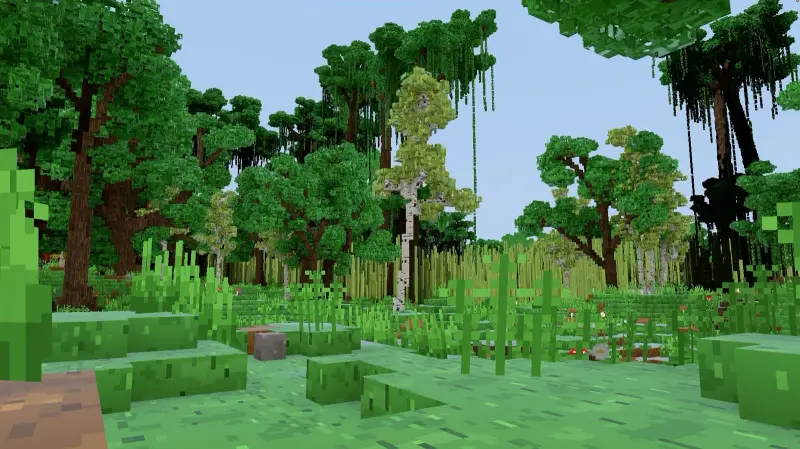
Why bother? Because a server is a world that stays on: friends drop in when they want, even when you're asleep. Openworld is a voxel sandbox on a whole, round planet — walk straight and you come back to where you started — under a real sky with Moon phases and eclipses, all the way to the Sun, by way of the Moon and the planets. With your own server, that planet belongs to your group, for as long as you like.





click a player
- 24710the game's UDP port, by default
- 100player slots by default (1 to 1,000)
- 3systems: macOS, Windows, Linux
- 1folder to copy for a full backup
What you need
- A computer that stays on while people play: macOS (Apple Silicon or Intel), Windows x64 or Linux x64. The server is a console program: no screen or graphics card needed.
- Processor: the more cores, the faster new terrain is generated. By default the server uses all cores but two for generation (
performance.workerThreads). - Disk: the world keeps every piece of terrain it has generated, about 12 KB per column — roughly half a gigabyte for a 3 km square explored. Plan room for long expeditions.
- Upload bandwidth: an exploring player can receive terrain at up to 20 Mbit/s by default. On a modest home connection, lower
performance.streamingBudgetBps: terrain arrives a bit slower, the game stays smooth. - Every player on the same version as the server: the launcher lets everyone pick it.
Install and start the server
- 1
Download it from the launcher
In the launcher, click the version chip next to PLAY ("Choose the game version"), pick your version, then Server — "Download openworld-server". Pick the system (Mac, Windows, Linux — not necessarily the one you're on) and a folder.
- 2
Find its folder
The launcher creates
openworld-server-<version>: the programopenworld-server, itsassets/folder (leave it next to it) and aREADME.txt. - 3
Open a terminal in that folder
macOS and Linux:
./openworld-server. Windows (PowerShell):.\openworld-server.exe— accept the firewall window the first time. - 4
macOS only, the first time
The file comes from the Internet: right-click the program → Open, or run
xattr -dr com.apple.quarantine .in the folder. - 5
Stop it cleanly
Ctrl + C (or type
stop): the world is saved before the server quits.
cd openworld-server-<version>
./openworld-server

# Windows (PowerShell)
.\openworld-server.exe

# macOS, first time only: lift the download quarantine
xattr -dr com.apple.quarantine .By default the server is online: only players launched from the Openworld launcher, with a valid account, get in — they arrive with their username and their skin. On a network without Internet, start it with --offline: everyone keeps the name they type, in the default skin, and nothing is checked.
server.json: set it up once
On the first start, the server writes a server.json next to where you launched it, filled with the defaults and laid out for humans. Edit it, restart, done. The main keys:
name,description,icon: what the server list shows (a PNG for the icon).port(24710) andslots(100, from 1 to 1,000).auth:online(Openworld accounts) oroffline.seed:random, a number or any text, for a new world;terrain:classicorcontinents(a few giant continents between oceans).world.difficulty:easy(no monsters),medium,normal,hard,very_hardorterrible(what each difficulty level changes);world.caves,world.creatures.players.gameMode:survival,creativeorspectrefor newcomers;players.superAdmins: your username (or UUID) — always SuperAdmin.dataDir(owserver_data),logs,web.(the dashboard),performance.,telemetry.
{
  "name": "Friday night planet",
  "description": "Our group's world. Be nice, build big.",
  "port": 24710,
  "slots": 12,
  "auth": "online",
  "seed": "friday night",
  "terrain": "continents",
  "dataDir": "owserver_data",
  "world": { "caves": true, "creatures": true, "difficulty": "normal" },
  "players": { "gameMode": "survival", "superAdmins": ["YourUsername"] },
  "web": { "enabled": true, "password": "change-me" }
}Any option typed on the command line wins for that run without rewriting the file: --port, --slots, --name, --motd, --seed, --seed-text, --difficulty, --terrain, --offline, --web… --help lists them all. Both --port 25000 and --port=25000 work.
./openworld-server --offline                      # LAN without Internet, no accounts
./openworld-server --port 25000 --slots 20
./openworld-server --seed-text "friday night" --terrain continents   # a NEW world
./openworld-server --difficulty easy              # no monsters
./openworld-server --web --web-password change-me # dashboard on port 24711
./openworld-server servers/Survival               # an instance folder with its own server.json
./openworld-server --helpPort forwarding, and the alternatives
Openworld uses one UDP port, 24710 by default. To let players in, three cases:
- 1
Same network (LAN)
Allow the port in the firewall (Windows asks on the first start; Linux:
sudo ufw allow 24710/udp). Friends connect to your local address, like192.168.1.20:24710. - 2
From the Internet
On your router, forward UDP 24710 to the server's computer, then give your public address (
address:24710). Every router names it differently: look for "port forwarding" or "NAT". - 3
Without port forwarding
No access to the router, or a provider that shares your IP? Put everyone on a mesh VPN (Tailscale, ZeroTier…) and share the address it gives your computer — or run the Linux x64 server on a rented machine with a public IP.
sudo ufw allow 24710/udp
# the dashboard, only if other computers need it:
sudo ufw allow 24711/tcpPlayers then add your server in Multiplayer → Add a server, and it shows up with its icon, name, description and players / slots. To just play with friends tonight without any of this, hosting your solo world on your local network takes two clicks.
Admin commands, roles and protected zones
Commands are in English, in the game's chat (T, then /) or in the server's terminal (without the /). Type help in the terminal for the full list: a few commands live only in the terminal, others only in the chat.
- Players:
players,kick,tp,gamemode … survival|creative|spectre,kill,respawn,/playerinfo,/invsee(their inventory),/playerstats. - World:
say,time set,weather clear|rain|thunder|snow… | auto,difficulty easy … terrible,/setworldspawn,mobs on|off. - Roles: SuperAdmin, Admin, Moderator and Player (the default).
/role assign PLAYER ROLE,/role create,/role add ROLE PERMISSION;/role nodeslists the permissions. - Zones:
/zone create NAME [RADIUS]protects a circle around you (no building, no explosions), then/zone set NAME pvp denyand friends — build, explosions, pvp, pve, mobs, chests, damage, entry. - Borders:
/border set RADIUSkeeps the world to a circle;/border space denyor/border world moon denyclose space or the Moon. - Homes for everyone:
/sethome,/homes,/home(3 per player by default). - Server:
save(everything to disk now),version,stop.
/role assign Alex moderator
/zone create spawn 40
/zone set spawn pvp deny
/border set 3000
/border world moon allow
/difficulty hard
/sethome baseThe web dashboard
Start with --web (or "web": {"enabled": true}) and open http://127.0.0.1:24711/: overview (TPS, tick, players, network, memory), players (position, inventory, actions), a live map of the world in 2D, isometric and 3D, the planets in space, creatures, terrain and storage, and the console in your browser. From another computer it's look-only — unless you set a --web-password.
Where your world lives (and how to back it up)
server.json: the settings;roles.json: the roles.owserver_data/: the world — its seed (world.cfg), generated terrain (chunks/), edited terrain (regions/), every player's save (players/<uuid>.json: position, inventory, game mode),zones.json,borders.json…logs/: the server's logs.
- 1
Back up
Type
stop(or Ctrl + C), copyowserver_data/,server.jsonandroles.jsonsomewhere safe, restart. The server also saves on its own every few minutes. - 2
Update
Download the new openworld-server from the launcher (it goes into a new
openworld-server-<version>folder), move your three items into it, start. Tell your players to pick the same version. - 3
Restore
Stop the server, put the copied folder back, start. Everyone comes back where they were.
tar czf backup-$(date +%F).tar.gz owserver_data server.json roles.jsonUpdates don't reshape your land: every piece of terrain the server has generated is stored with the world and served as is, even when a new version generates new worlds differently. Keep a backup anyway before each update — it costs one copy.
Is it safe to host a server from home?
- One UDP port, and the traffic on it is encrypted (X25519 + ChaCha20-Poly1305).
- Online mode checks every player's account with Openworld's service: nobody can borrow your friend's username.
- The dashboard lets other machines only look, unless you set a password; don't forward its port (TCP 24711) on your router if you don't need it.
- Anonymous statistics: the server sends numbers (players online, TPS) to help the game, never an account nor a chat line.
--no-telemetryturns them off.
The usual home-server advice applies: keep the machine's system up to date, and only forward the port you need. Hosting on Linux? The Linux build is covered in Openworld on Linux.
Follow Openworld
@play_openworld is Openworld's official Instagram page: videos of the game and news of every update.
@play_openworldOpenworld is created by @tompascard
Server running? Now bring the players: the guide to playing with friends explains what each of them needs, and the message to send them.
Three steps to the game (and its server)
- 1Install Openworld with the downloaded file: it sets up the launcher.
- 2Create your account in the launcher and confirm your email.
- 3Pick your username… and play.
Openworld is played on a computer: Mac, Windows or Linux. Send yourself the link, we'll be waiting on the other side.
Questions
How many players can a home server handle?
A server is set for 100 slots by default (1 to 1,000 in server.json). What really limits it at home is your processor, which generates new terrain, and your upload bandwidth; the web dashboard shows the TPS and tick time so you can see where you stand.
Do I need a static IP?
No. Give your friends your current public address; if it changes, send the new one. A dynamic DNS name or a mesh VPN avoids the hassle.
Can I run it 24/7 on a Raspberry Pi or an old laptop?
An old x64 laptop or PC, yes: the server is a console program for Linux x64, Windows x64 and macOS, with no graphics needed. A Raspberry Pi, no: there's no server for ARM Linux today. There's no official Docker image either.
Can I move my solo world to a server?
There's no button for that yet. For a few friends, host your solo world on your local network instead (Host on local network in the pause menu). Starting a server with the same text seed (--seed-text) and terrain type gives the same landscape, without your builds.
How do I back up my server?
Stop it, copy the owserver_data folder with server.json and roles.json, restart. Restoring means putting that copy back.
Does it work without the Internet?
Yes, with --offline: no account check, everyone keeps the username they type and wears the default skin. Online mode (the default) needs the Internet to check accounts.
How do I get the Openworld server?
You download it from the launcher, next to the game. Players still need the game.